> ## Documentation Index
> Fetch the complete documentation index at: https://hashbot.com/docs/llms.txt
> Use this file to discover all available pages before exploring further.
# PFP Filter Removal
> If you've added a profile picture to your filter list by mistake — or need to adjust your protection setup — you can easily remove individual PFP filters.
Each protected image added to your PFP filters is assigned a **unique ID**, which is required for removal.
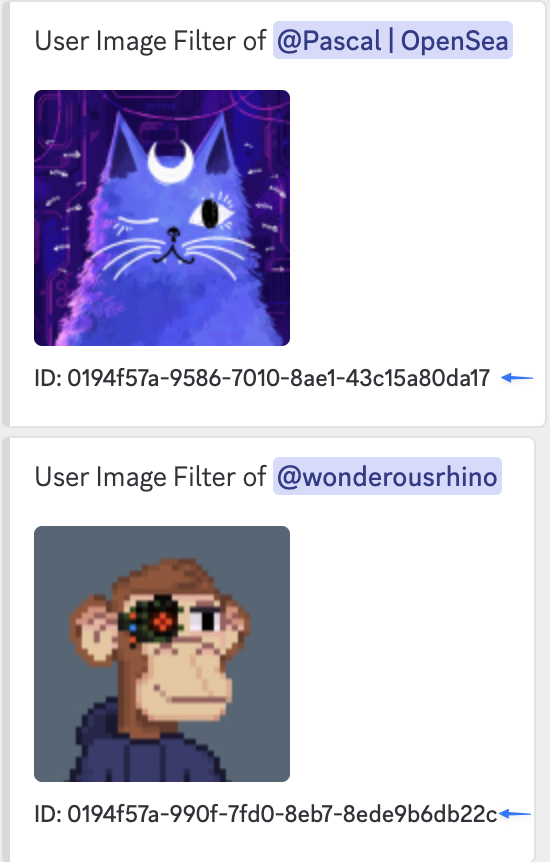
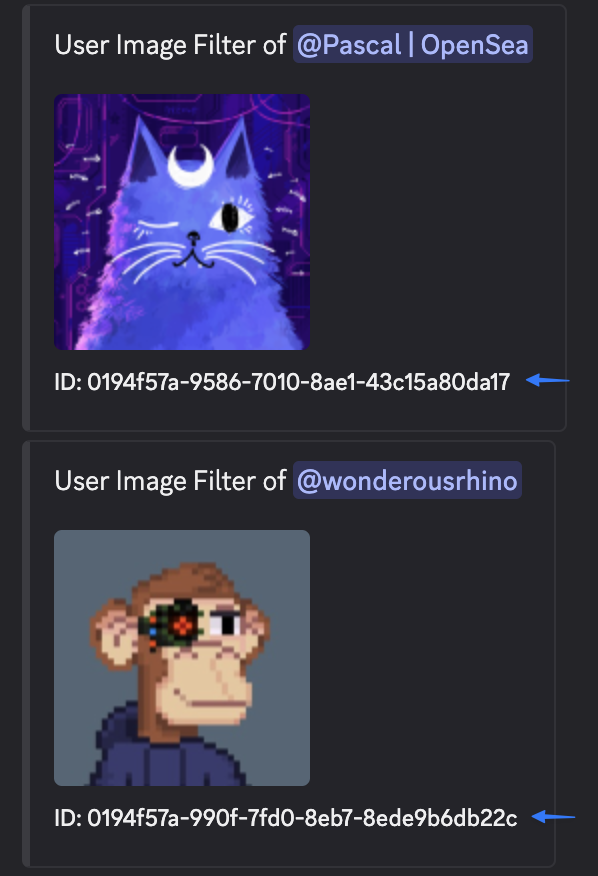 **Need the Filter ID?**\
Use the `/pfp-filters list` command to see your filter count and a link to the [Hashbot Dashboard](https://dashboard.hashbot.com), where you can view all active filters and their corresponding IDs.\
For a full guide on setup and management, visit the [PFP Setup page](/pfp/pfp-setup).
## How to Remove a PFP Filter
Use the following command with the image’s filter ID: `/pfp-filters remove `
### Example:
`/pfp-filters remove 81e7c3f5-2d72-4a90-a20b-efae12d453a3`
This will remove the specified image from the active protection list.
### Best Practices
* Double-check the filter ID before removing to avoid deactivating the wrong protection
* After removal, re-run `/pfp-filters list` or check the [dashboard](https://dashboard.hashbot.com) to confirm the update
* If you remove a filter used in a template, reapplying the template may reintroduce it
**Need the Filter ID?**\
Use the `/pfp-filters list` command to see your filter count and a link to the [Hashbot Dashboard](https://dashboard.hashbot.com), where you can view all active filters and their corresponding IDs.\
For a full guide on setup and management, visit the [PFP Setup page](/pfp/pfp-setup).
## How to Remove a PFP Filter
Use the following command with the image’s filter ID: `/pfp-filters remove `
### Example:
`/pfp-filters remove 81e7c3f5-2d72-4a90-a20b-efae12d453a3`
This will remove the specified image from the active protection list.
### Best Practices
* Double-check the filter ID before removing to avoid deactivating the wrong protection
* After removal, re-run `/pfp-filters list` or check the [dashboard](https://dashboard.hashbot.com) to confirm the update
* If you remove a filter used in a template, reapplying the template may reintroduce it